TikTok, Reels & Shorts — Batch Vertical Video Conversion Workflow for Mac
Optimal vertical video settings for TikTok, Instagram Reels, and YouTube Shorts. Learn 9:16 conversion, CRF vs bitrate, and efficient batch workflows on Mac.
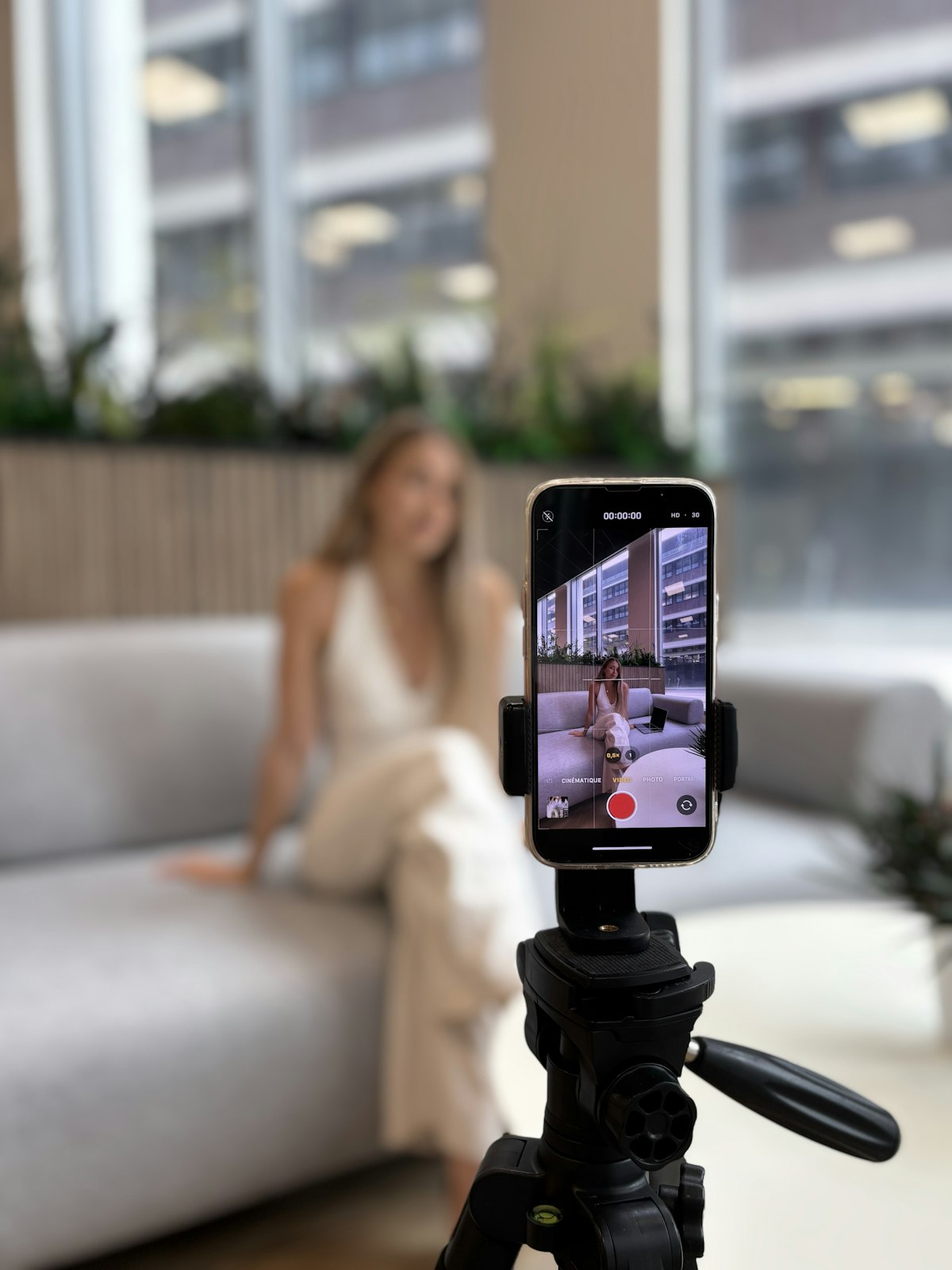
TikTok, Reels & Shorts — Batch Vertical Video Conversion Workflow
Vertical video (9:16) has become the dominant format for social media content. TikTok, Instagram Reels, and YouTube Shorts are all designed for full-screen vertical viewing, and uploading horizontal footage as-is simply doesn't capture attention in a vertical-first feed.
The challenge? Each platform has its own recommended settings, and manually exporting the same video three times with different configurations is tedious and error-prone.
This guide walks you through a batch workflow to convert a single source video into optimized vertical videos for all three platforms, using DockBuddy Converter for Mac.
Why Vertical Video Matters
With smartphone video consumption accounting for over 70% of all video views, vertical content consistently outperforms horizontal in engagement metrics.
| Metric | Horizontal (16:9) | Vertical (9:16) |
|---|---|---|
| Screen coverage (mobile) | ~30% | 100% |
| Average watch-through rate | Lower | Higher |
| Algorithm prioritization | No | Yes |
| Thumbnail display | Small | Full-screen |
All three platforms — TikTok, Instagram Reels, and YouTube Shorts — use 1080×1920 (9:16) as their baseline resolution. Uploading horizontal video results in large black bars above and below your content, signaling low effort to viewers.
Platform-by-Platform Recommended Settings
Let's start by comparing the recommended specifications across all three platforms.

Platform Specification Comparison
| Parameter | TikTok | Instagram Reels | YouTube Shorts |
|---|---|---|---|
| Resolution | 1080×1920 | 1080×1920 | 1080×1920 |
| Aspect ratio | 9:16 | 9:16 | 9:16 |
| Recommended frame rate | 60fps | 30fps | 30fps / 60fps |
| Recommended codec | H.264 | H.264 | H.264 |
| Bitrate control | CRF 23 | CRF 20 | CBR 6,000kbps |
| Audio | AAC 128kbps | AAC 128kbps | AAC 128kbps |
| Max video length | 10 minutes | 90 seconds | 60 seconds |
| Max file size | 287MB (10 min) | 4GB (90 sec) | — |
| Container | MP4 | MP4 | MP4 |
Platform-Specific Notes
TikTok supports 60fps, and the extra smoothness can genuinely help stop viewers from scrolling past your content. CRF 23 offers an excellent balance between quality and file size, which matters because the 287MB cap for 10-minute videos is relatively strict.
Instagram Reels defaults to 30fps, and CRF 20 (slightly higher quality than TikTok) is recommended. Instagram's algorithm tends to favor higher-quality content, so investing a bit more data into quality pays off. The 4GB file size limit is generous, but videos are capped at 90 seconds.
YouTube Shorts works best with a constant bitrate of 6,000kbps. Since YouTube re-encodes all uploads, providing a predictable, high-bitrate source yields more consistent quality after re-encoding than CRF mode. Maximum duration is 60 seconds.
CRF vs Constant Bitrate — When to Use Which
Choosing the right bitrate control method significantly impacts both quality and file size for vertical SNS videos.
CRF (Constant Quality) Mode
CRF (Constant Rate Factor) automatically adjusts the bitrate based on scene complexity.
| CRF Value | Quality | Best For |
|---|---|---|
| 18 | High (near lossless) | Master archive |
| 20 | High | Instagram Reels |
| 23 | Standard | TikTok |
| 28 | Low | File size priority |
Pros:
- Automatically reduces bitrate in static scenes, saving file size
- Automatically increases bitrate in high-motion scenes, preserving quality
- Efficient allocation of data where it's needed most
Cons:
- Final file size is unpredictable
- Size varies significantly depending on content
Constant Bitrate (CBR) Mode
Constant bitrate allocates a fixed amount of data throughout the video.
Pros:
- Predictable file size
- Better compatibility with platforms that re-encode (like YouTube)
Cons:
- Wastes data on static scenes
- Less efficient than CRF overall
Recommended Mode by Platform
| Platform | Recommended Mode | Reasoning |
|---|---|---|
| TikTok | CRF 23 | Keeps file size within the 287MB limit |
| Instagram Reels | CRF 20 | Higher quality favored by Instagram's algorithm |
| YouTube Shorts | CBR 6,000kbps | Stable quality after YouTube's re-encoding |
Horizontal-to-Vertical Conversion — Crop vs Letterbox
When converting horizontal (16:9) footage to vertical (9:16), the scaling mode you choose dramatically affects the final result.
Scaling Mode Comparison
| Mode | Behavior | Pros | Cons |
|---|---|---|---|
| Crop | Cuts the sides of the frame to fill the screen | Full-screen, immersive | Side information is lost |
| Letterbox (Fit) | Shows the entire frame with padding above and below | All visual information preserved | Black bars reduce impact |
| Stretch | Distorts the video to fill the frame | No black bars | Distorted visuals (not recommended) |
| Auto | Analyzes source aspect ratio and selects the optimal mode | Effortless, usually correct | May not match your intent |
Recommended Scaling by Source Material
Already 9:16 (smartphone footage):
- Use Auto or convert directly — no scaling needed
16:9 horizontal footage repurposed for vertical:
- Subject centered in frame → Crop (main subject survives the trim)
- Information spread across the frame → Letterbox (preserves all details)
- Planning to add text overlays later → Letterbox (use top/bottom padding for text)
DockBuddy Converter offers Auto, Letterbox, Crop, and Stretch scaling modes. In Auto mode, sources within 15% of the target aspect ratio are passed through; beyond that threshold, fit or crop is applied automatically.
DockBuddy Converter's Built-in Presets
DockBuddy Converter includes built-in presets for all major SNS platforms, eliminating manual configuration entirely.
Preset Details
| Preset | Resolution | Codec | Bitrate Control | Audio |
|---|---|---|---|---|
| YouTube Shorts | 1080×1920 | H.264 | CBR 6,000kbps | AAC 128kbps |
| TikTok | 1080×1920 | H.264 | CRF 23 | AAC 128kbps |
| Instagram Reels | 1080×1920 | H.264 | CRF 20 | AAC 128kbps |
| YouTube 1080p | 1920×1080 | H.264 | CBR 8,000kbps | AAC 192kbps |
All presets use H.264 with VideoToolbox hardware encoding, delivering fast, reliable conversions on any Mac.
Step-by-Step Workflow — One Source, Three Platforms
Here's the complete workflow for converting a single video into optimized outputs for TikTok, Instagram Reels, and YouTube Shorts.
Step 1: Prepare Your Source Material
The most efficient approach is to shoot in 9:16 vertical from the start.
- Smartphone: Simply hold your phone upright — it's automatically 9:16
- Camera: Shoot vertically if possible, or shoot horizontal and crop later
For horizontal source material, DockBuddy Converter's Crop mode centers the frame and trims the sides to fill 9:16.
Step 2: Add Files to DockBuddy Converter
- Launch DockBuddy Converter
- Drag and drop your video files, or use the file picker to add them
- Multiple files can be added at once for batch processing
Supported input formats include MP4, MOV, and M4V (Free), plus AVI, MKV, WebM, WMV, FLV, and 3GP with the Pro upgrade.
Step 3: Select Presets and Convert
Option A: Single preset for multiple files
When converting several files for the same platform:
- Select the "TikTok" preset
- The same settings apply to all files
- Start conversion
Option B: One source to three platforms
When converting a single source for all three platforms:
- Select the "TikTok" preset and convert
- Switch to "Instagram Reels" and convert again
- Switch to "YouTube Shorts" and convert
Step 4: Adjust Frame Rate
Different platforms prefer different frame rates:
| Platform | Recommended fps | DockBuddy Converter Setting |
|---|---|---|
| TikTok | 60fps | Select 60fps |
| Instagram Reels | 30fps | Select 30fps |
| YouTube Shorts | 30fps or 60fps | Select based on content |
If your source is 60fps, converting to 30fps for Instagram Reels also reduces file size.
Step 5: Organize Output Files
DockBuddy Converter Pro's automatic folder organization keeps your exports tidy:
- By preset: Separate folders for TikTok, Instagram Reels, and YouTube Shorts
- By date: Organized by recording or conversion date
- By resolution: Grouped by output resolution (e.g., 1080×1920)
This makes it immediately clear which file is for which platform when it's time to upload.

Using the Target File Size Feature
When you need to stay within TikTok's 287MB limit (for 10-minute videos), DockBuddy Converter Pro's target file size feature handles it automatically.
Available File Size Limits
| Limit | Use Case |
|---|---|
| 10MB | Test/preview |
| 25MB | Email attachment |
| 50MB | Short TikTok clips |
| 100MB | Standard SNS videos |
| 250MB | Longer TikTok videos |
| 500MB | High-quality archive |
When you specify a target file size, DockBuddy Converter automatically adjusts the bitrate to ensure the output stays within your specified limit.
This is especially valuable for TikTok, where the 287MB cap for 10-minute videos means careful bitrate management is essential for longer content.
What Pro Unlocks for Your Workflow
DockBuddy Converter's Free version handles basic vertical conversion, but upgrading to Pro ($9.99, one-time purchase) significantly streamlines SNS video production.
Free vs Pro Comparison
| Feature | Free | Pro |
|---|---|---|
| Files per conversion | 5 files | Unlimited |
| Output containers | MP4, MOV | MP4, MOV, MKV, WebM |
| Video codecs | H.264 (HW) | H.264 (HW), HEVC (HW), VP9, AV1 |
| Audio codecs | AAC | AAC, MP3, FLAC, Opus, Copy |
| Target file size | ✕ | ✓ |
| Auto folder organization | ✕ | ✓ (by date/resolution/preset) |
| Original frame rate | ✕ | ✓ |
| Additional input formats | ✕ | AVI, MKV, WebM, WMV, FLV, 3GP |
When Pro Makes the Biggest Difference
Batch converting large volumes of SNS content
- Free is limited to 5 files per conversion; Pro removes that limit
- Ideal for preparing a week's worth of content in one session
Staying within TikTok's file size limits
- Target file size ensures you never exceed the 287MB cap
HEVC for smaller files
- Pro enables HEVC (H.265) encoding
- Approximately 30–50% smaller files at equivalent quality compared to H.264
Frequently Asked Questions
Q: Does converting horizontal video to vertical reduce quality?
Re-encoding inevitably introduces minor quality loss, but with proper CRF or bitrate settings, it's virtually imperceptible. When using Crop mode, resolution changes are involved, so start with the highest quality source available (1080p or above).
Q: Should I always convert from the original source for each platform?
Yes — always convert from the original source. Converting an already-converted file introduces generational quality loss. DockBuddy Converter never modifies your source files, so you can safely convert the same source multiple times.
Q: Can I convert 4K footage to 1080×1920?
Absolutely. In fact, downscaling from 4K typically produces superior results. When cropping horizontal 4K footage to vertical, there's ample resolution headroom, resulting in sharp, high-quality vertical output.
Q: Should I use H.264 or HEVC for SNS uploads?
For now, H.264 is the safest choice. All three platforms — TikTok, Instagram Reels, and YouTube Shorts — recommend H.264 uploads, and it has the fewest compatibility issues. HEVC may gain broader platform support in the future, but H.264 remains the standard for SNS content.
Q: Can the Free version convert to vertical video?
Yes, the Free version supports vertical video conversion using H.264 with MP4 or MOV containers. The built-in presets (TikTok, Instagram Reels, YouTube Shorts) are available in the Free version. The only limitation is a maximum of 5 files per conversion batch.
Platform-Specific Encoding Settings in Detail
If you prefer manual configuration over presets, here are the exact parameters for each platform in DockBuddy Converter.
TikTok Settings
| Parameter | Value |
|---|---|
| Output container | MP4 |
| Resolution | 1080×1920 (9:16) |
| Video codec | H.264 (VideoToolbox HW) |
| Bitrate control | CRF 23 |
| Frame rate | 60fps |
| Audio codec | AAC |
| Audio bitrate | 128kbps |
| Scaling mode | Crop (horizontal source) / Auto (vertical source) |
TikTok pairs well with high-motion content, making 60fps the recommended choice. CRF 23 balances quality against the 287MB file size limit for 10-minute videos. For shorter clips (1–3 minutes), you can drop to CRF 20 for higher quality without file size concerns.
Instagram Reels Settings
| Parameter | Value |
|---|---|
| Output container | MP4 |
| Resolution | 1080×1920 (9:16) |
| Video codec | H.264 (VideoToolbox HW) |
| Bitrate control | CRF 20 |
| Frame rate | 30fps |
| Audio codec | AAC |
| Audio bitrate | 128kbps |
| Scaling mode | Crop (horizontal source) / Auto (vertical source) |
With a maximum duration of 90 seconds, Instagram Reels can afford CRF 20 without approaching the generous 4GB file size limit. Instagram's algorithm tends to favor higher-quality uploads in feed placement, so the extra quality investment pays dividends in reach.
YouTube Shorts Settings
| Parameter | Value |
|---|---|
| Output container | MP4 |
| Resolution | 1080×1920 (9:16) |
| Video codec | H.264 (VideoToolbox HW) |
| Bitrate control | CBR 6,000kbps |
| Frame rate | 30fps or 60fps |
| Audio codec | AAC |
| Audio bitrate | 128kbps |
| Scaling mode | Crop (horizontal source) / Auto (vertical source) |
YouTube re-encodes every upload, so providing a high-bitrate source is essential for post-processing quality. A constant 6,000kbps for 1080×1920 vertical Shorts gives YouTube's encoder plenty of data to work with, maintaining crisp visuals after re-encoding.
Common Pitfalls and How to Avoid Them
1. Aspect Ratio Mismatch
If your output isn't exactly 9:16, the platform may apply unexpected cropping or add black bars. Using DockBuddy Converter's presets guarantees a precise 1080×1920 output, eliminating this risk entirely.
2. Frame Rate Misunderstanding
Converting 24fps source footage to 60fps won't make it smoother — no frame interpolation is performed. The rule of thumb: never set the output frame rate higher than your source. If your source is 30fps, use 30fps for TikTok as well.
3. File Size Miscalculation
For constant bitrate, you can estimate file size with this formula:
File size (MB) ≈ Bitrate (kbps) × Duration (seconds) ÷ 8,000
Example: 6,000kbps × 60 seconds ÷ 8,000 = 45MB
CRF mode doesn't allow this calculation, so when file size constraints matter, use DockBuddy Converter Pro's target file size feature instead.
4. Overlooking Audio Quality
It's easy to focus entirely on video settings and forget about audio. All three platforms recommend AAC at 128kbps, and DockBuddy Converter's presets apply this automatically. For videos with music or narration, audio quality significantly impacts viewer perception — keep it at 128kbps or above.
Tips for Efficient SNS Video Production
Shooting Best Practices
- Shoot vertically whenever possible — eliminates the conversion step entirely
- Record at 1080p or higher — ensures sufficient quality even after downscaling
- Shoot at 60fps — easy to convert down to 30fps, but the reverse is impossible
- Keep your subject centered — survives cropping better
Conversion Best Practices
- Always convert from the original source — prevents generational quality loss
- Use presets — eliminates manual configuration errors
- Organize by preset with auto-folders — prevents upload mix-ups
- Check file size for TikTok — remember the 287MB limit
Streamlining Your Posting Schedule
For creators posting to multiple platforms weekly, this workflow maximizes efficiency:
- Shoot day: Batch-record a week's worth of content
- Edit day: Edit and add captions in your video editor
- Convert day: Use DockBuddy Converter to batch-export for all three platforms
- Post day: Schedule posts with your preferred scheduling tool
Summary
Vertical video for TikTok, Instagram Reels, and YouTube Shorts can be efficient and high-quality with the right tools and workflow.
Key takeaways:
- All three platforms use 1080×1920 (9:16) as the standard resolution
- TikTok: CRF 23 / 60fps / watch your file size
- Instagram Reels: CRF 20 / 30fps / prioritize quality
- YouTube Shorts: CBR 6,000kbps / 30–60fps
- Use Crop or Letterbox for horizontal-to-vertical conversion
- DockBuddy Converter's built-in presets prevent configuration errors
- Batch conversion and auto folder organization maximize efficiency
Related Articles
- Best YouTube Video Export Settings Guide [1080p, 4K & Shorts] — Detailed export settings for YouTube (focused on horizontal long-form video)
- How to Choose a Mac Video Converter App — Comprehensive comparison of Mac video conversion apps
- Video & Audio File Formats Explained — Fundamentals of codecs and containers